Introduction To Arduino

ard


In this blog I will reveal and explain the journey taken to understanding and developing in Physical Computing. More specifically using an Arduino Leonardo. This blog will detail my journey getting to know Arduino and my experiments doing so.

I’m a Bath Spa University student, studying Creative Computing Bsc and am taking part in the module Physical computing.

Introduction to Arduino

An Arduino is made up of a physical programmable circuit board, known as a micro controller, and a software IDE that runs on your computer (ie my laptop). Using code written in a simplified C++ language that enables you to make digital devices that are interactive both physically and digitally. Here is a link to see some Arduino experiments…

https://www.youtube.com/watch?v=eJg3yuAAawA

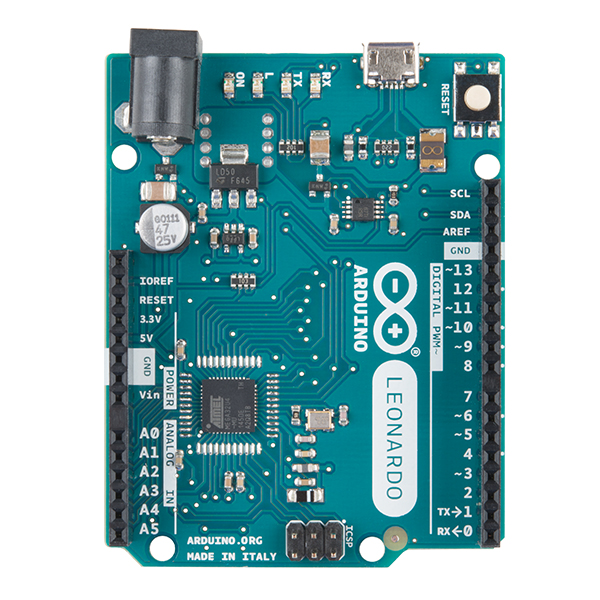
I am using the Arduino Leonardo. Which was released in 2012. The Arduino is a micro controller board based on the ATmega32u4 microchip. With 20 digital input pins, 7 of which can be used as pulse-width modulation. Pukse width modulation involves being able to control components such as motors or the brightness of leds using an analogue signal in a digital environment, learn more about this and Arduino at https://electronicshobbyists.com/arduino-pwm-tutorial/.  Arduino also contains a 16MHz crystal oscillator, a micro usb, a power jack, an ICSP header (in-circuit serial programming) and a reset button. The ICSP is used to upload code to the device.

The Arduino contains everything you need to use the micro controller by connecting it to a computer by usb. This is what an Arduino Leonardo looks like…

Image result for what is an arduino leonardo


At the moment I have a Arduino Leonardo, a micro usb lead, a bread board, 5 LEDs, 5 resistors, an LDR sensor and 8 small wires. This is all the kit I have at the moment having not bought any more specialised parts…

arduinokit

Screen Shot 2019-05-11 at 00.20.57

Here is the bare bones of the Arduino IDE interface for the code of our programs. You may notice a function void setup and void loop. The basic function of setup is to set up instances of variables or assign values to them, so if a program is dynamic which Arduino programs usually are you would create the starting point of these values in setup. You may also set and initialise pins and components you use here such as this wake up function used for a driver chip lc.shutdown(0, false); or the pinMode to one that you are using and give it a number such as pinMode(6, OUTPUT), which sets pin 6 as output and allows you to change the voltage.

The very top of the program outside the setup is also used to create declarations of variables where they are public global variables.

The function loop is where most of the programming takes place unless you create a specific function to call independently. Which you might do if you repeat yourself in your code for specific reasons and you want to improve and shorten your code. The loop function does exactly what it says, it repeats itself 16,000,000 times a second but is slowed down slightly by peripheral connection made to it.

Hopefully that is enough information to understand the basics of Arduino.


Week 1 – Physical Computing

The first week was an opportunity to look at different applications of physical computing. Such as synchronised drone flights…

Physical Computing is an interesting subject and part of what many people are more fascinated by such as robotics. In fact Physical Computing means interacting with real world objects using a computer.

An example of this technology was shown to us by Anton Bowers our lecturer. Who had created his own Delta Parallel robot that could draw an image portrait of a photo taken of someones face, or bust. A Delta Parallel robot looks something like this…


Image result for delta parallel drawing robot

Our first step into physical computing and using Arduino was to set up a ‘Hello World’ like experiment with a Blinking LED called ‘Blink’. This required setting up a bread board with wiring, plugging the Arduino in to my laptop and uploading code to it to run the program. This is what the bread board looks like…

Image result for arduino breadboard

The bread board works as the base for our circuits. You can see a plus + and minus – sign at the edges of the board. The plus (+) takes power in and the minus (-) completes the circuit and is connected to the ground on the Arduino. The plus and minus represent anode and cathode which is an important part for the components to our circuits. The middle marked by the letters A–E and F-J run horizontally so that if a connection is made from Cathode (+) to one row, the whole row receives power and current enabling us to add components and complete circuits.

The first circuit I made for the Arduino was based on and looked like this…

Image result for blink circuit arduino

The code looked like this…

Screen Shot 2019-03-06 at 13.31.05

And The result looked like this…

week1a

It was good to bet to grips with the Arduino in this simple experiment because I had used it before previously. So some of the basics about how to create a circuit were rediscovered. It’s important to get the initial confidence about what works with Arduino because it helps when working out what code works in the compiler, as well as how the bread board and Arduino function. The understanding helps build confidence about what works and how to fix it. I look forward to future experiments and using more advanced components.

This is an example of the ‘Blink’ experiment I did at home. I created an SOS LED display of (DOT,DOT,DOT,DASH,DASH,DASH,DOT,DOT,DOT).

2019-03-08 16.12.28

// the setup function runs once when you press reset or power the board
void setup() {
// initialize digital pin LED_BUILTIN as an output.
pinMode(LED_BUILTIN, OUTPUT);

(This code for pinMode and LED_Builtin is important because the voltage is changed for the builtin LED, which for Arduino Leonardo corresponds to Pin 13)

}

// the loop function runs over and over again forever
void loop() {

(This digital write sets values of High ‘5V’ or Low ‘0V’, so by including delay() and digital write, LOW we can create a little light show)

digitalWrite(LED_BUILTIN, HIGH); // turn the LED on (HIGH is the voltage level)
delay(100); // wait for a second
digitalWrite(LED_BUILTIN, LOW); // turn the LED off by making the voltage LOW
delay(100); // wait for a second
digitalWrite(LED_BUILTIN, HIGH); // turn the LED on (HIGH is the voltage level)
delay(100); // wait for a second
digitalWrite(LED_BUILTIN, LOW); // turn the LED off by making the voltage LOW
delay(100);
digitalWrite(LED_BUILTIN, HIGH); // turn the LED on (HIGH is the voltage level)
delay(500); // wait for a second
digitalWrite(LED_BUILTIN, LOW); // turn the LED off by making the voltage LOW
delay(300);
digitalWrite(LED_BUILTIN, HIGH); // turn the LED on (HIGH is the voltage level)
delay(300); // wait for a second
digitalWrite(LED_BUILTIN, LOW); // turn the LED off by making the voltage LOW
delay(300);
digitalWrite(LED_BUILTIN, HIGH);
delay(300); // wait for a second
digitalWrite(LED_BUILTIN, LOW); // turn the LED off by making the voltage LOW
delay(300);
digitalWrite(LED_BUILTIN, HIGH);
delay(300);
digitalWrite(LED_BUILTIN, LOW); // turn the LED off by making the voltage LOW
delay(150);
}

This is the long winded but effective code needed to make an SOS message. Notice the gaps using delay and the switching from high to low voltage at different lengths to create the SOS message.


Week 2 -Physical Computing

Our second week of Physical computing was a step of development to understanding information like Ohm’s Law… (Volts = Current * Resistance).

Image result for ohm's law

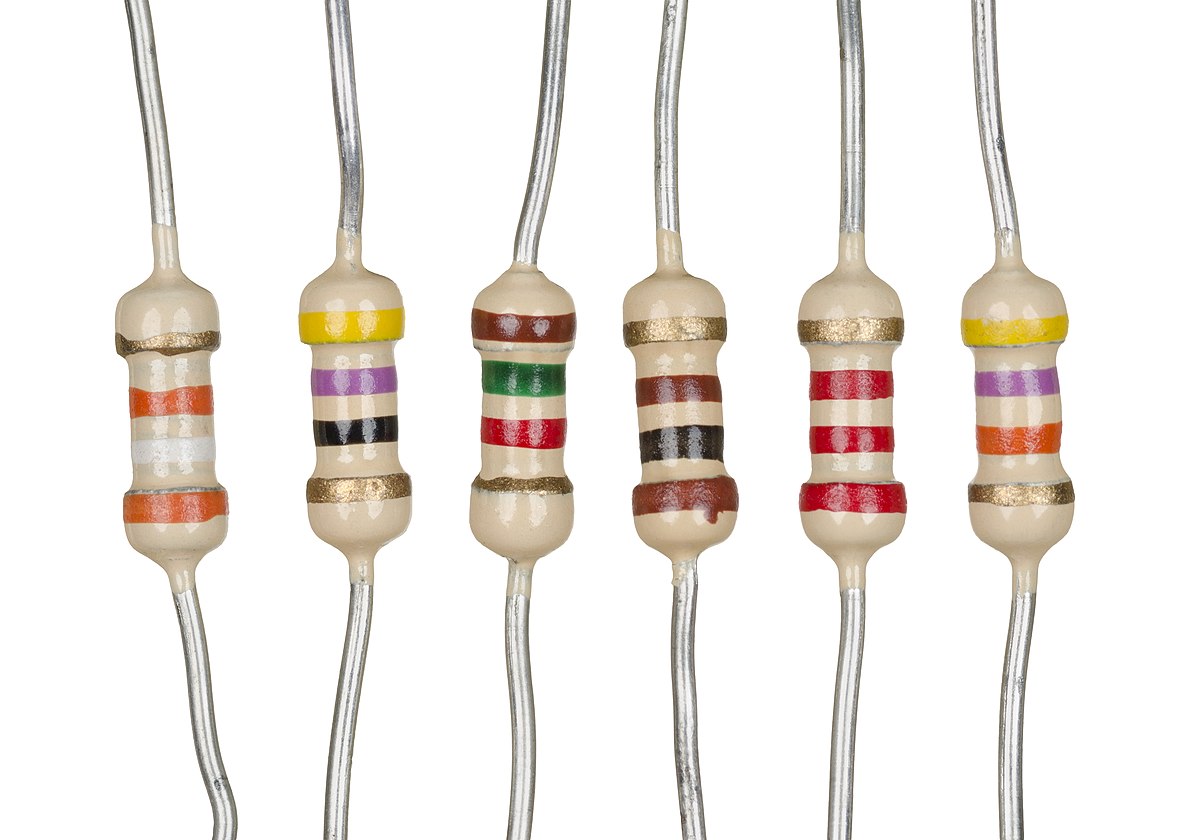
This physics formula helps to scientifically understand electric current and voltage with relevance to resistance. Resistance is important for creating circuits while using an Arduino, where we use resistors to limit the voltage pushed through by current that can affect our components. Such as blowing an LED and breaking it. If you didn’t know this is what a resistor looks like on our small circuits.

Image result for resistors

Its important to understand the range of resistors and their values. For example I typically use 100ohm resistors in my circuits. But there are resistors with values ranging from 100’s of ohms to kilo ohms (1000) to milli ohms (1,000,000). To identify the values of a resistor that is fit for your purpose you use colour code bands like the ones shown above.

The colours of the 1st and 2nd band create a number such as green (5) blue (6) resulting in 56 multiplied by yellow (10k) with a tolerance of gold (+ or – 5%).

Image result for resistor colour code

Reading resistance values can be difficult at times such as knowing which end of the resistor is the 1st band or tolerance but there are some methods to working out the value. Similar to above there may be a gap between the last and second last band. Sometimes the 1st band is closer to a lead. You can also tell with some certainty that a band is tolerance or band value based on colours like gold and silver which only have multiplier and tolerance values. Or bands like orange, yellow and white which are never tolerance.

Within the class we looked at the use of an interesting component, an LDR or Light Dependant Resistor which only costs 60p. It is an interesting bit of kit that detects light and the more light the higher the resistance created by the LDR. I used this code to test for the presence of light and record values for resistance across a circuit using the LDR…

int sensorPin = A0; // select the input pin for LDR

int sensorValue = 0; // variable to store the value coming from the sensor
void setup() {
Serial.begin(9600); //sets serial port for communication
}
void loop() {
sensorValue = analogRead(sensorPin); // read the value from the sensor
Serial.println(sensorValue); //prints the values coming from the sensor on the screen

delay(100);

}

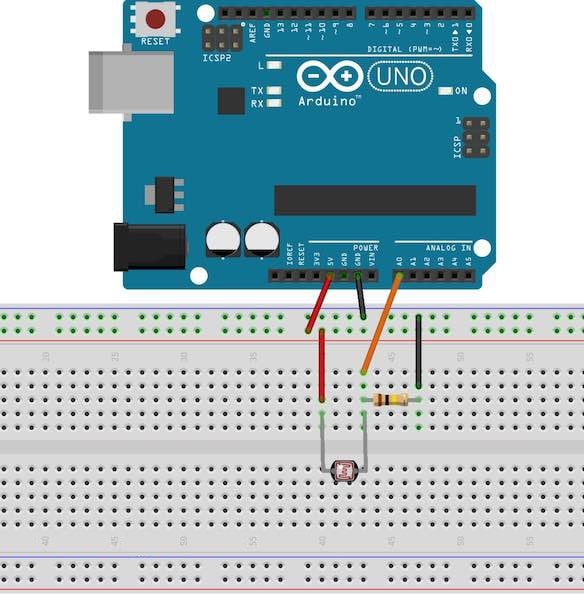
The circuit I used was the same as this one I found online…

Image result for ldr resistor circuit arduino

And this was my circuit…

week2.jpg

This is a copy of some of the values I recorded while interacting with the LDR by covering it with my hand and letting it receive light…

42,42,42,207,220,223,221,222,223,222,221,200,154,143,77,41

This Lead me to an idea for an experiment where I code use light detecting components to create a ‘laser tag’ dartboard where you shoot sensors on a dartboard. So I did some research about homemade laser tag and the components I would need to create it. This website was helpful…

https://www.instructables.com/id/Duino-Tagger/

It has a list of necessary items to create the laser tag Arduino project:

Arduino
Light Gun
Coloured LED’s (preferably 30mA+)
IR sensors
At least 2x IR LED’s matched to the IR receiver  (preferably 100mA+)
Peizo sounder
Power transistor /MOSFET
A few electronics basics: solder, resistors , capacitors.

You may also want
Scrap plastic
LED bar graph driver chips
More LED’s
Record your own message greetings card
Hats / helmets / headbands to mount sensors on

Because of this list I bought a laser tag system


Week 3 – Physical Computing

In week 3 of physical computing we were looking at Servo motors and some of the application of servo motors. there are many kinds of servo motor that perform in different ways with different capabilities and specifications shown in their data sheets.   I was using a DM SG90 servo which can rotate almost exactly 180 degrees and is lightweight with high power output. This is the SG90 data sheet…

Screen Shot 2019-03-12 at 13.26.53Using Servos is an interesting opportunity for experimentation because servos can be arranged to perform all kinds of actions and this is the first ability to physically move something I have had learning on this degree course. Here are examples of experiments made using Servos…

https://www.youtube.com/watch?v=Ogm3ITBxkL8&t=8s

So my first experiment was really just to get the servo working and I did this by plugging the servo directly into the Arduino and applying some code.servo.jpg

Screen Shot 2019-03-12 at 13.35.46

An important inclusion in this code is #include servo.h which is needed to work with servos and the Arduino can hold up to 12 servos attached to the twelve output nodes. If you dont have the servo library download and include it in you project. Furthermore the servo must be declared as a servo object to be referenced (Servo myservo;) and must be attached to the corresponding node wired on the Arduino (myservo.attach(9)).

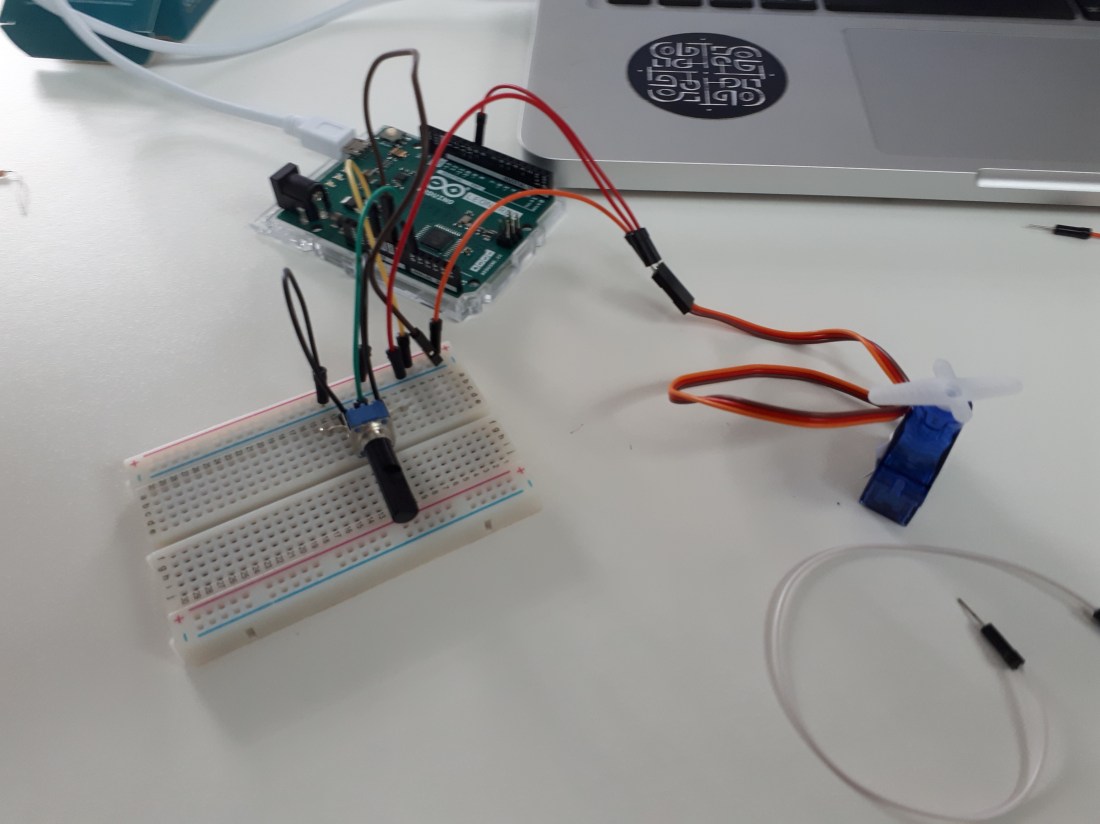
Another simple experiment was to use a potentiometer to use a mapped value of the resistance created by a turnable handle to move the servo between its minimum and maximum degrees. Like this…

servopotw3

The wiring for this is a similar extension of the first experiment using a breadboard. The three nodes on the potentiometer are for power, ground and analogue input.

Screen Shot 2019-03-12 at 13.39.21.png

Here by using an AO analogue output node and mapping the value with (angle = map(angle, 0, 1023, 0, 179); the servo is written to move to the angle that corresponds to the resistance reading on the potentiometer.

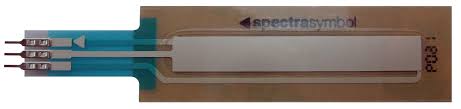
The last experiment involved a spectra symbol softpot linear soft membrane potentiometer.

softpot

The result of using this touch sensitive linear soft membrane potentiometer is to collect data or resistance based on where contact is made with it. I used it to make the rotation angle of the servo respond to my touch on the sensor.

servotouchw3.jpg

This image provides clearer representation of the circuit used with the softpot. The softpot has three nodes that are the interface for using the softpot, one is connected to 5V, ground and the A0 analogue input 0.

example_circuit_softpot.png

Week 4 – Physical Computing

Week 4 was another interesting look at stepper motors. There are two main kinds of stepper motor, unipolar and bipolar. The stepper motors use phases with a magnetic field that iterates to make it turn. Bipolar stepper motors are slightly more complicated to orientate the magnetic field but can be simplified. The unipolar stepper motor and stepper motors a like are simple, unipolar is the kind I used today.

Unipolar-Stepper-Motor

I used the stepper motor in a circuit to practice using it in different ways during this lecture. First of all I tried to get it working and stepping with a simple use of code, but I was helped by a colleague Dan Bowers to get it working as the stepper motors were spread across all people on the course. My simple stepping project looked like this…

stepperw4.jpg

The chip in the middle of the bread board was used to communicate with the stepper motor but I cannot remember what it was called. Like other components the stepper motor had to be wired correctly to include pins 8,9,10,11 to create phases for the steps. By adding a potentiometer similar to the diagram (below) and adapting the code we were able to control the speed the stepper motor turned. As well as mapping the value that we code also using an LDR to control the speed.

UnipolarKnob_bbsm

This code was used for the potentiometer with a knob…

Screen Shot 2019-03-12 at 16.22.31

Which was very similar to the code used with the LDR…

Screen Shot 2019-03-12 at 16.23.45

These experiments and challenges all contributed to being a bit more competent about how to wire a circuit with different components and code to use these.

Week 5 – Physical Computing

This week involved looking at Audio and other fun experiments such as bluetooth connection.

The first experiments I did was a simple little buzzer program that was a lot like a blink experiment. It was so simple to set up it was fun, but there is also some interesting code improvements to using these kind of components.

buzz.jpg

This code was used to make the buzzer sound for an SOS message. It is simple with High and Low output while pausing to creating dots and dashes…

sos_buzz

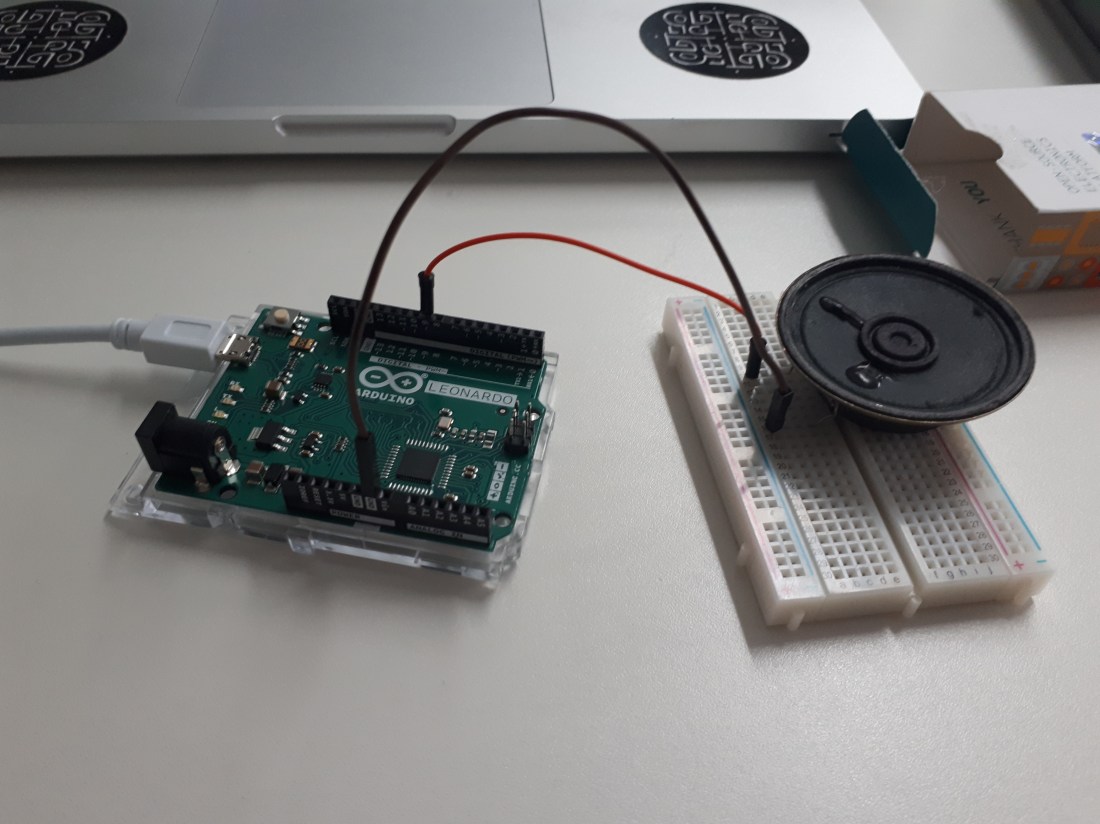
Another step in making a slightly more complicated use of audio is with the speaker. Which is set up for simplicity in a similar way to the buzzer.

speaker.jpg

Code to help with creating notes can be found in a built in library with Arduino and included, such as pitches.h. There is also examples for audio within the Arduino IDE found here…

0418_arduino_music_2

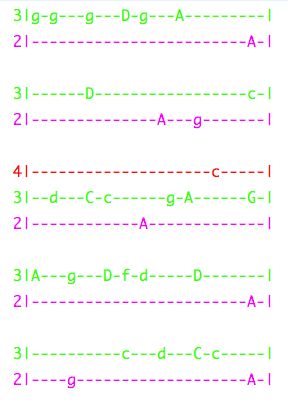
This code I sourced gave me the ability to create notes and essentially be able to play something more musical.

melody

This is an impressive code block that I sourced. The char array ‘notes’ represents the line of music that is played, the tones array represents the required output frequency to play each note. The loop function calls the playNote, playNote calls the playTone function to play the note. With this it is possible to code something similar to music such as the Super Mario them tune. Like this…

mario

Week 6 – Physical Computing

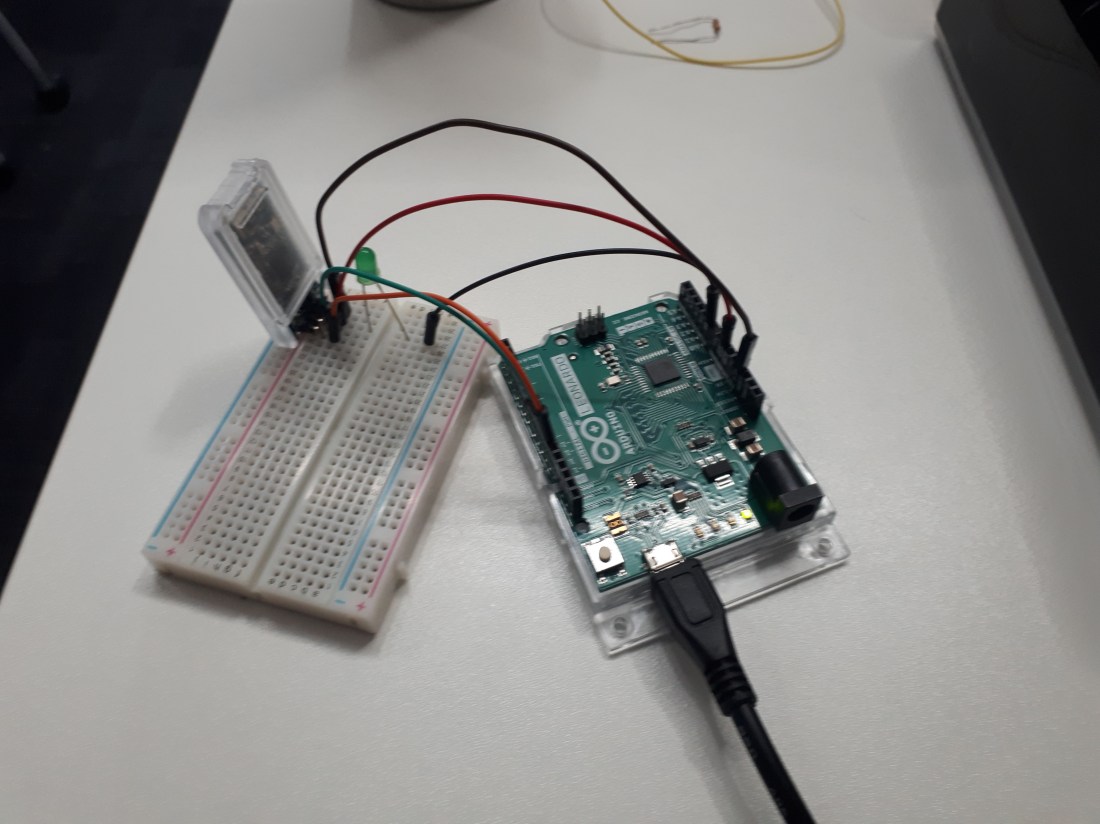
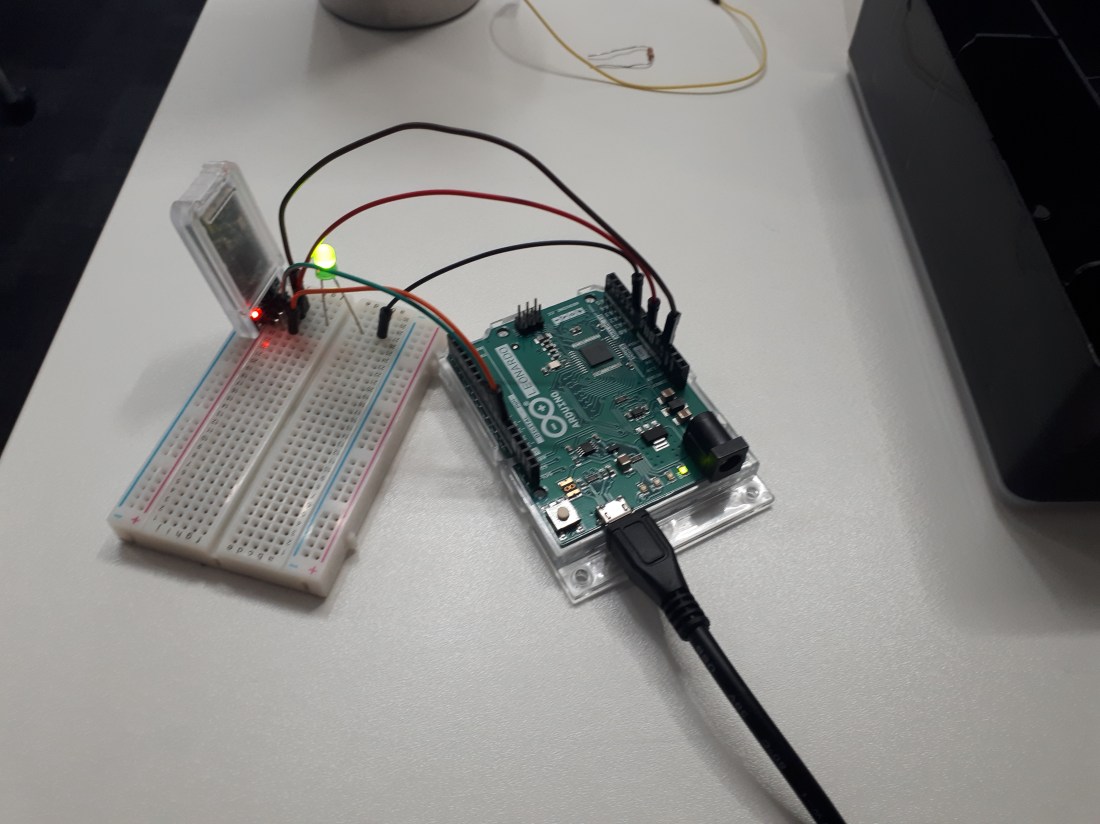
In this lecture and for sometime after I was working on two experiments. One involved a DSD tech hm-10, which is a component that allows you to interact with the Arduino using bluetooth. This is the circuit I created with help from Daniel Bowers.

bluetoothLED (1)

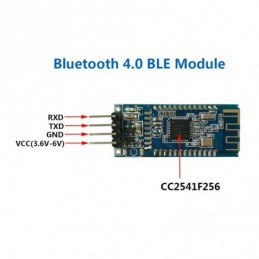
Like many other complicated components the DSD tech comes with a four node interface to work with our Arduino. There are ground, to complete the circuit, VX which takes power and two other pins. The RXD and TX pins are for receiving and transmitting. They act to transmit raw binary computer code along their band width which allows you to interact using blue tooth. The complication is that the RX of the Arduino must be connected to the TX of the DSD tech and vice versa.

dsd-tech-hm-10-bluetooth

I was able to turn an LED on and off using the DSD tech app…

dsd tech bluetooth app-2.jpg

Which produced this result…

bluetoothLed

In fact I struggled with this experiment and spent a long time trying checking, making alterations and rewiring it to get it to work. In the end, Daniel Bowman used exactly the same set up of code and wiring but with his ‘Iphone’ and it worked.

This was disheartening but when it did work I was pleased and decided to leave it as it was. It’s important to stay committed and continue researching the solutions to problems like these so that you can get results but this time it seemed to be a problem outside of my grasp.

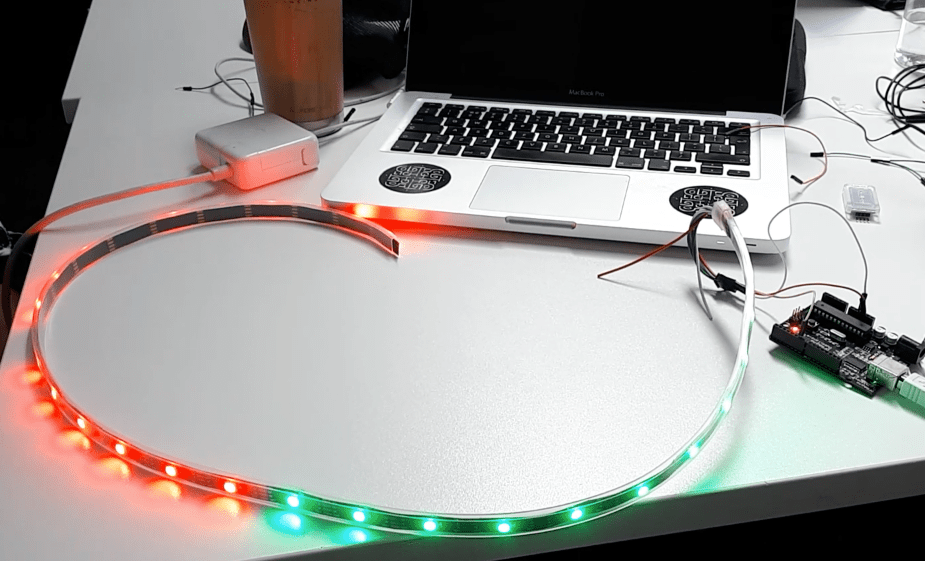
The second experiment I worked on was with a neon band where as a three person team we tried to get the decorative lighting to work and display patterns. In the end we we’re informed that the preparation of the component had been slightly mishandled and the neon band had been given its interfacing nodes at the output end where it should have been attached to the beginning to create a circuit. Once we changed the band we got it working like this…

neon_band.png

This weeks progress was slow but I know from experience that its important to keep hopes up and persevere to get results.

Final Experiment – Preparation

My goal for the final experiment is to create a Laser Tag Dart board game with a score and count down timer. These are the parts I have Bought so far to complete the project

parts

I bought these parts from Farnell.com. It includes 7 Segment LED displays, single (top-middle) and dual (right). To display scores and a countdown. There are 2 types of phototransistor (bottom middle). Two LED display driver chips (top-left) and Lots of LEDS in green and red colour (bottom-left).

The first experiment I did was with the phototransistor, using a circuit like this…photoCircuit.jpg

And code like this (left) to get readings like this (right) …

SensorCode.pngsensorReadingHit

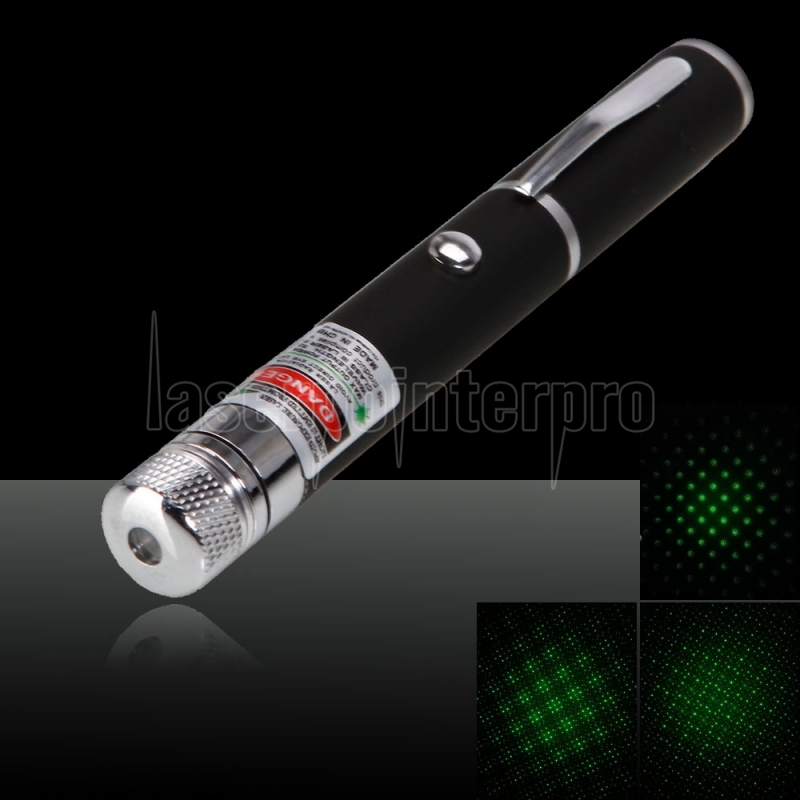
To get the reading I shone a light up close to the phototransistor and it worked!! The benefit of the phototransistors I was using is they are dim to cancel out low light. The same experiments with the other clear resistors was that they were receiving natural light and only giving resistance readings between 0 and 8. These dimmed transistors and high sensor values should work perfectly. In the actual experiment I will use a laser pointer because while testing the little guns I had they did not get a reading. This is the laser pointer I have purchased at a low price with 97% off…

laserpointer.jpg

Now that I have the laser pointer I moved on to testing the circuit with it. The problem was I wasn’t getting a high enough reading to cause a sensor hit. With the preferred dimmed phototransistor I was getting a 0-4 score of resistance when expecting around 200 as shown by my code. While trying with the low value clear transistor I didn’t get a reading at all.


I had to try this from a distance and in the dark to see if I could register as low a resistance value as 4 to get a hit. In a dark room and at some distance I was getting readings as high as 40 which could work. I found it added to the drama to be using the laser pointer in the dark. It was a foreseen problem and part of my original intentions but I was so overconfident about my work at that point. It seems now that I will be able to make a working prototype and that it be hard enough to be fun to play with.

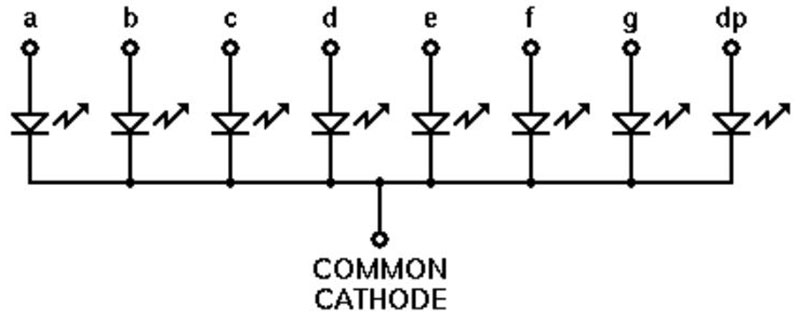
Another experiment I was working with involved two different 7 segment LED displays to work as the clock counting either up to or down from 99. Another Led display to count the score. The first thing I tried to get working was a counting clock with a single 7 segment. It was fairly simple in the end but I had to use some guidance from resources online.comoon_cathode7Seg

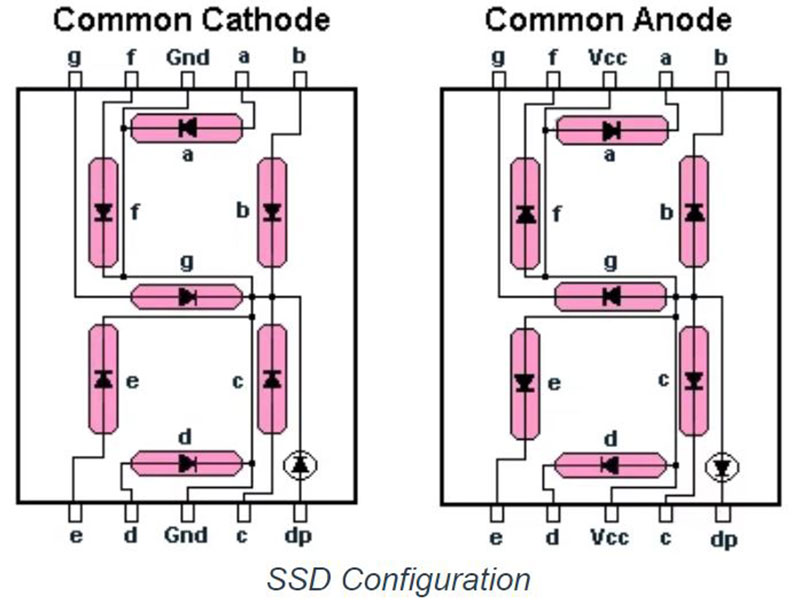
This diagram shows the internal structure of a common cathode 7 Segment LED display. There are two types of 7 Segment display, common cathode and common anode. The difference between them involves the position of power and ground to complete the circuit where polarity is different as resistors appear in different places. Like this…Cath&An.jpeg

On the common cathode 7 segment display you must connect the nodes that say ground (GND) to ground to complete the circuit. A set up of the circuit for the single LED display is based on something like this…

7SegDemoCircuit

This was simple but requires you to commit to memory a basic knowledge of these circuits. As in the diagram above, the segments appear in order A-F they must be plugged into the Arduino nodes in ascending order. This is because there is an array created to switch on LEDs in the display corresponding to each segment that makes up numbers 0-9. It is also handily possible to create the letters H-E-L-P should it ever be necessary. This is the code I used to make the display count down from 9-0 repeatedly…

Screen Shot 2019-04-18 at 16.29.43

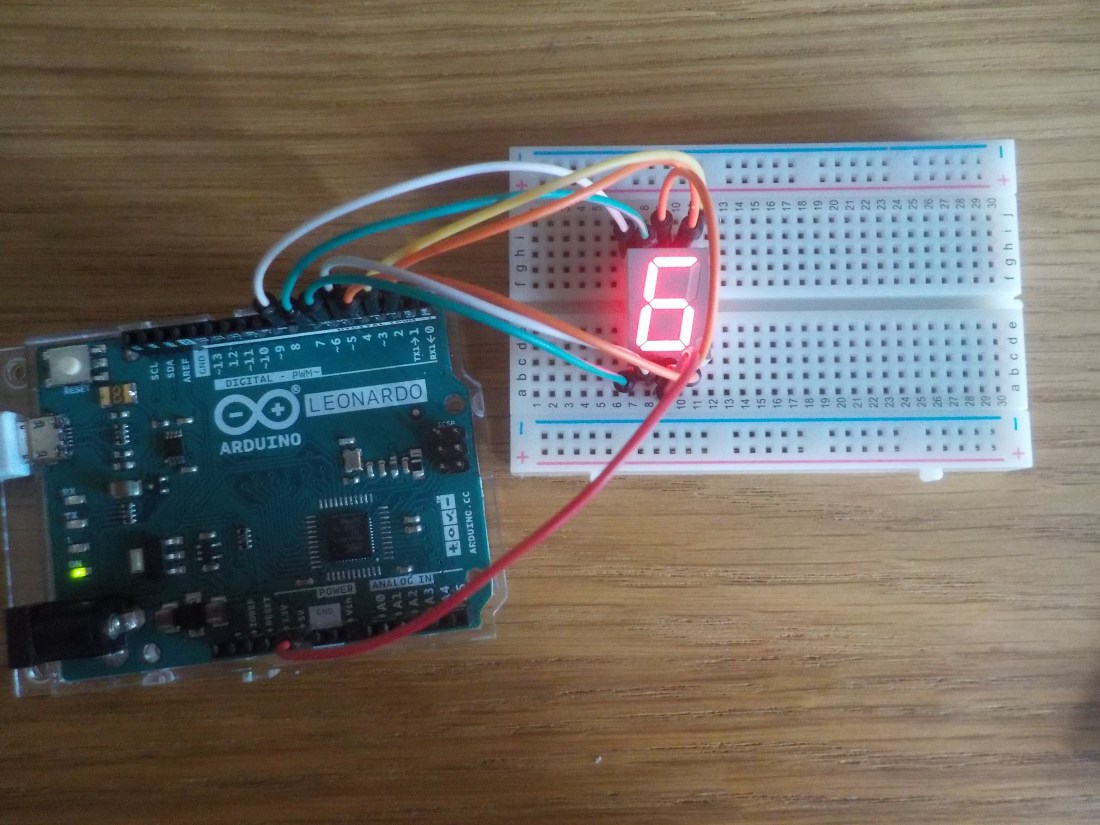
The num_array at the top is the list of values for each number 0-9 to appear such as 0 which is 1,1,1,1,1,1,0 leaving just the middle section out of the 7 segment. Every time the num_Write function is called it cycles through the pins and gives them a binary value of 0/1 or low and high to turn them on. Each new number either gives a high value or sets them to 0 or low. The 400 millisecond delay is there to put a pace of nearly a second on each different number appearing. This is what it looked like complete…

dial_6.jpg

With these two experiments complete I have some of the groundwork for my final experiment. But I need to build on these to make each of the parts of my Laser Tag Dart Board.

Next I worked on setting up a dual 7 segment display which helps me get into double digits for either the score or the timer. The problem is having tested the working pins on the Arduino showing that the pin 0 does not work that means pins 1-13 are the only ones I can use. But a dual seven segment display needs 14 pins to power each of the LEDs. Therefore the most I could do is power all but one LED on the dual display like this…


dual.jpg

While testing this and other 7 segment display it proved useful as I found displays that has become dysfunctional such as this one where two of the LED have short circuited where one pin powers 2 LEDs, like this…

broken 7seg.jpg

Because I cannot power a whole dual seven segment or even the desired 2 dual 7 segment I have to use a driver chip. Here is the driver chip I am using 

Image result for maxim 7219

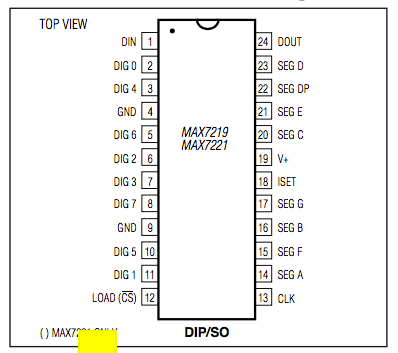
It is a MAXIM 7219, and I have two of them. They are especially useful for my experiment because I can use only 3 pins and power a whole dual 7 segment LED display.

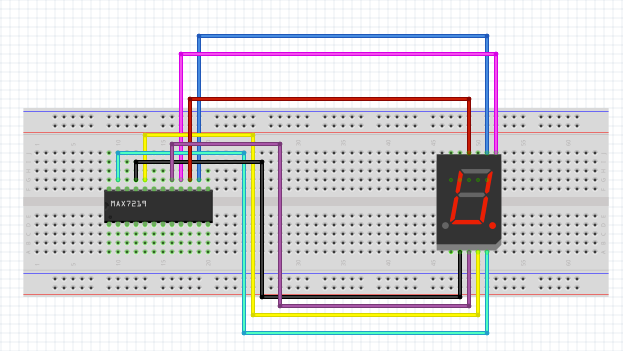
To help me understand how to wire a circuit for a dual 7 segment display I used the site https://www.brainy-bits.com/using-7-segment-display-with-arduino/ . There is lots of information about all the components and how to wire with 7 segment displays. It was also useful that the tutorial is made using the same MAXIM 7219 driver chips that I am. This is the circuit I used to wire my Dual LED display with a driver chip.

Arduino 7 segment MAX7219 schematic

In my circuit I didn’t use two led displays I just stuck to the one and for the time being. Here is an image of what I made…

DualwithDriver1.jpg

This is a dual 7 segment display counting down from 99 to zero using this code…

99countdownCode

It is important to note that there is a library installed to make this work called LEDControl. Which is available here… https://www.arduinolibraries.info/libraries/led-control . Once its downloaded you can access it in the Arduino interface. Open Arduino and go to Sketch – include library – Led Control. Like this…

Screen Shot 2019-05-13 at 20.05.28.png


With the library included reference it using the code line

#include  <LedControl.h> an then create an instance with the line

LedControl lc = LedControl(13, 12,11,1). This code references the three pins I will be using to power the driver chip and the last 1 means the number of chips I will be using. This is because a driver chip can be used to create a matrix and power up to eight seven segment display or 64 individual LEDs. But also driver chips can be used in a matrix where many driver chips power huge array of LEDs.

An example of this using some similar technology is in Times Square in New York where the huge screen are made with matrixes of LEDs using RGB colour codes. So essentially a driver chip is the beginning of the technology that brings the bright lights of Times Square.

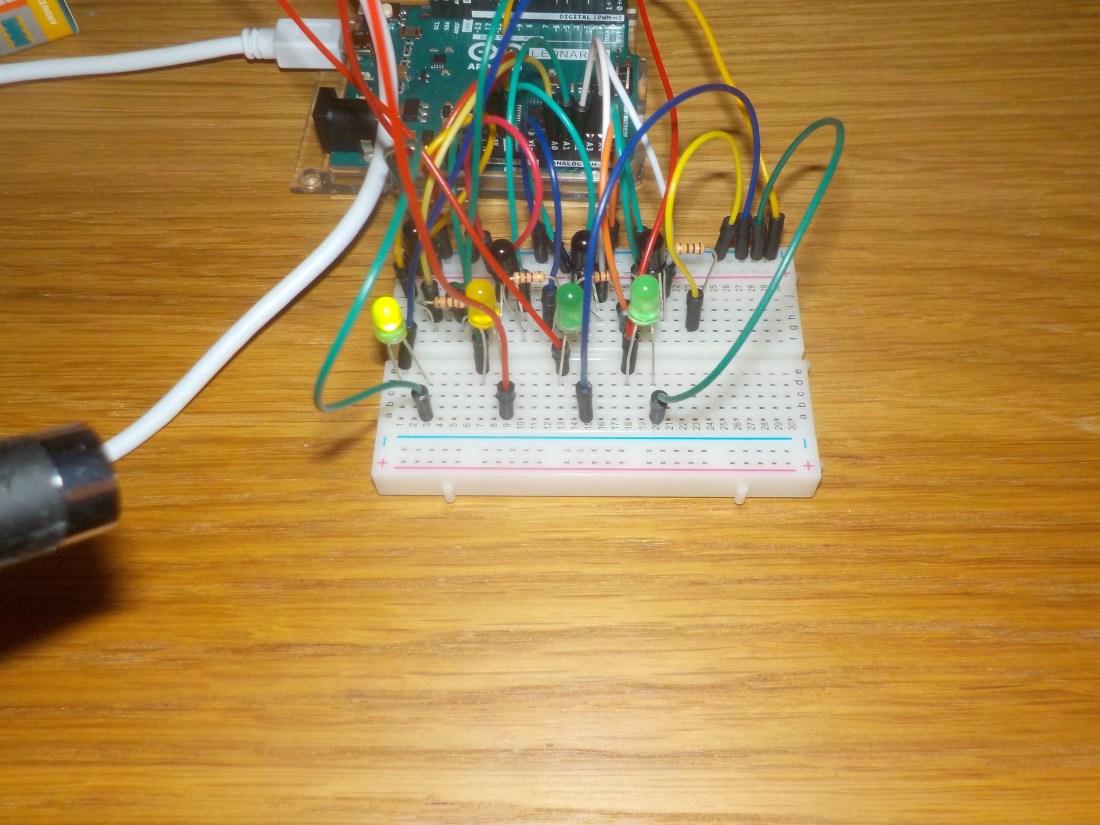
To further prepare for the final experiment I created a phototransistor circuit. To see what difficulty might come from multiple transistors and LEDs sequenced to get hits. Which would require an LED relevant to each transistor and there would have to be random jumps from one target/Led to another. This is what I made…

targets.jpg

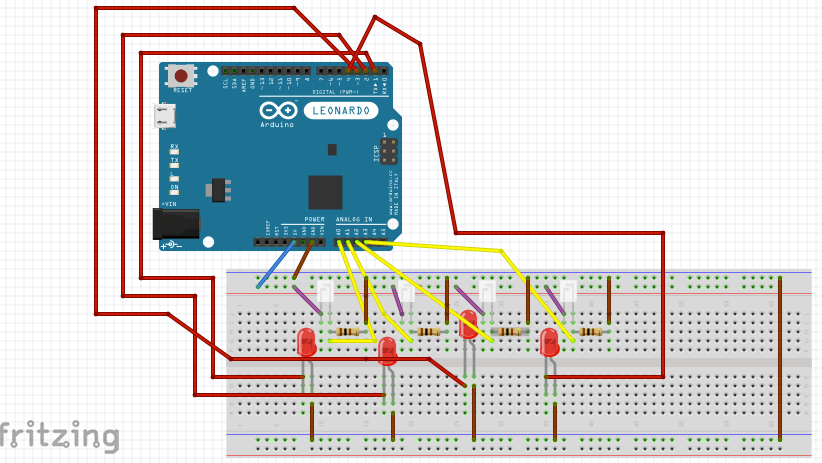
Here are 4 target transistors and 4 LEDs that correspond to them, I actually separated LEDs and transistor with a bookmark because I found that the light from the LED next to its transistor would actually trigger the hit sometimes. This was a relatively simple circuit to make and all based on simpler circuits but some knowledge was needed to apply to this exact situation. Here is a circuit diagram to understand…

CircuitSketch

Using this code I wrote I was able to  shine a laser at each phototransistor target corresponding to a lite up LED. Like this…

int target;

int sensorPin1 = A0; // select the input pin for phototransistor
int sensorPin2 = A1; // select the input pin for phototransistor
int sensorPin3 = A2; // select the input pin for phototransistor
int sensorPin4 = A3; // select the input pin for phototransistor

int sensorValue1 = 0; // variable to store the value coming from the sensor
int sensorValue2 = 0; // variable to store the value coming from the sensor
int sensorValue3 = 0; // variable to store the value coming from the sensor
int sensorValue4 = 0; // variable to store the value coming from the sensor

void setup() {
//Serial.begin(9600); //sets serial port for communication
target = 1;
pinMode(1, OUTPUT);
pinMode(2, OUTPUT);
pinMode(3, OUTPUT);
pinMode(4, OUTPUT);

//target = getTarget();
//Serial.println(“program started”);
}
void loop() {
//Serial.println(“in the loop”);
//Serial.println(target);
//target = getTarget();
//target = 1;
switch (target) {
case 1:
Serial.println(“Sensor1 Active”);
digitalWrite(1, HIGH);
sensorValue1 = analogRead(sensorPin1); // read the value from the sensor
Serial.println(sensorValue1);
if (sensorValue1 > 10) {
Serial.println(“Sensor1 Hit!!”);
Serial.println(sensorValue1);
digitalWrite(1, LOW);
delay(400);
target = getTarget();
}
break;
case 2:
Serial.println(“Sensor2 Active”);
digitalWrite(2, HIGH);
sensorValue2 = analogRead(sensorPin2); // read the value from the sensor
Serial.println(sensorValue2);
if (sensorValue2 > 10) {
Serial.println(“Sensor2 Hit!!”);
Serial.println(sensorValue2);
digitalWrite(2, LOW);
delay(400);
target = getTarget();
}
break;
case 3:
Serial.println(“Sensor3 Active”);
digitalWrite(3, HIGH);
sensorValue3 = analogRead(sensorPin3); // read the value from the sensor
Serial.println(sensorValue3);
if (sensorValue3 > 10) {
Serial.println(“Sensor3 Hit!!”);
digitalWrite(3, LOW);
delay(400);
target = getTarget();
}
break;
case 4:
Serial.println(“Sensor4 Active”);
digitalWrite(4, HIGH);
sensorValue4 = analogRead(sensorPin4); // read the value from the sensor
Serial.println(sensorValue4);
if (sensorValue4 > 10) {
Serial.println(“Sensor4 Hit!!”);
digitalWrite(4, LOW);
delay(400);
target = getTarget();
}
break;
}
delay(200);
}
int getTarget() {
int counter = random(1,5);
return counter;
}

This  code uses a switch in the loop to access each target and turn the light on, starting with target 1 which is defined in the setup loop. There is a function called getTarget which creates a random number between 1 and less than 5. It all works.

Now I think I’m ready to make more complicated experiments combining the things I’ve learnt.


Final Experiment – Development

The start of my development meant getting a bit ahead of myself and trying to make the actual dart board to house all the components, Arduino and breadboards. Which started by a trip to B&Q where I bought some wood and had it cut for the price of a £2 charity donation.

I set to work marking out the holes to drill to find the spaces where I could fit panels to be the backbone of the board. Or something to set up a hook and hand the board from. Then once I knew the positions I wanted pieces in I glued them down using gorilla glue.

glued board.jpg

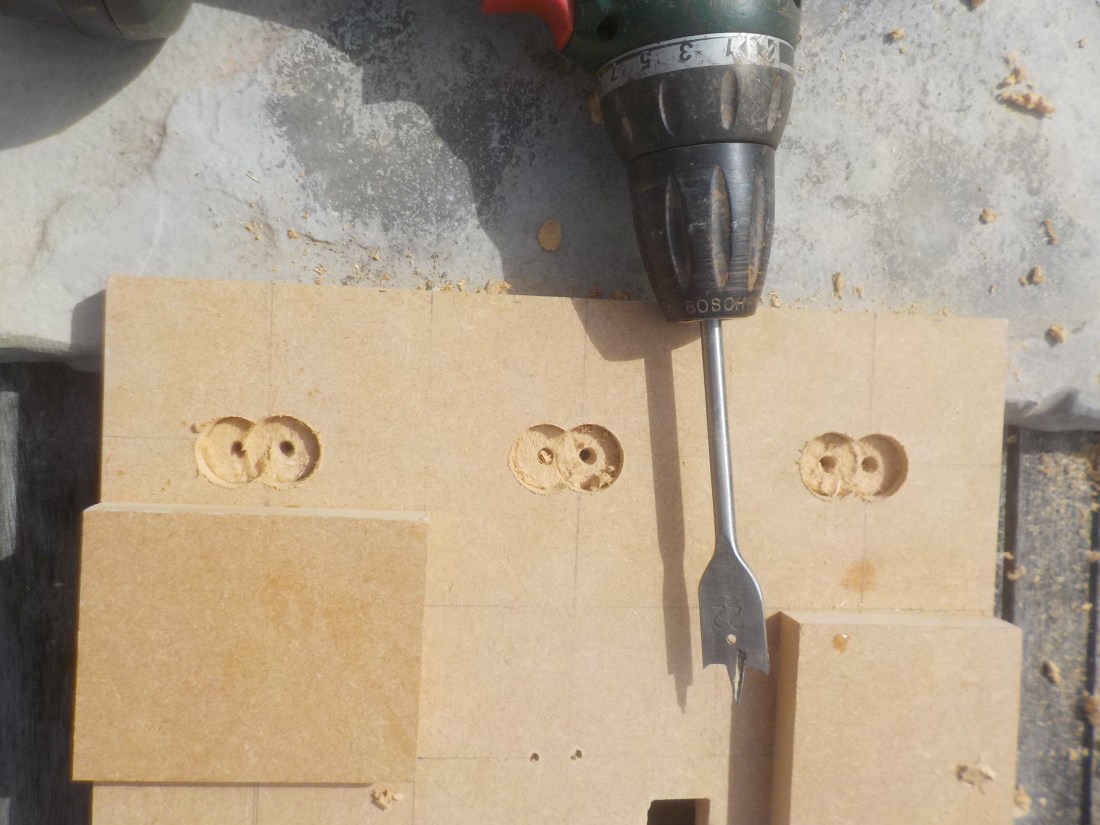
I then drilled holes in the board. One hole slightly above the other a total of 8 times. This was because I would need to have a hole for the led target and the phototransistor just below. I also had to make the LED’s sit slightly inside a lip so the light didn’t reach the sensor target.

I did this by drilling a small 2ml hole all the way through to act as a guide for other drilling. Then a 6ml hole less than a centimetre in on the LED hole to act as a base for the LED to rest on. On the other Side I used a spade point to clear an area behind the LEDs and sensor so I had more room to work with the anode and cathode wires that were exposed out the back.

spade holes.jpg

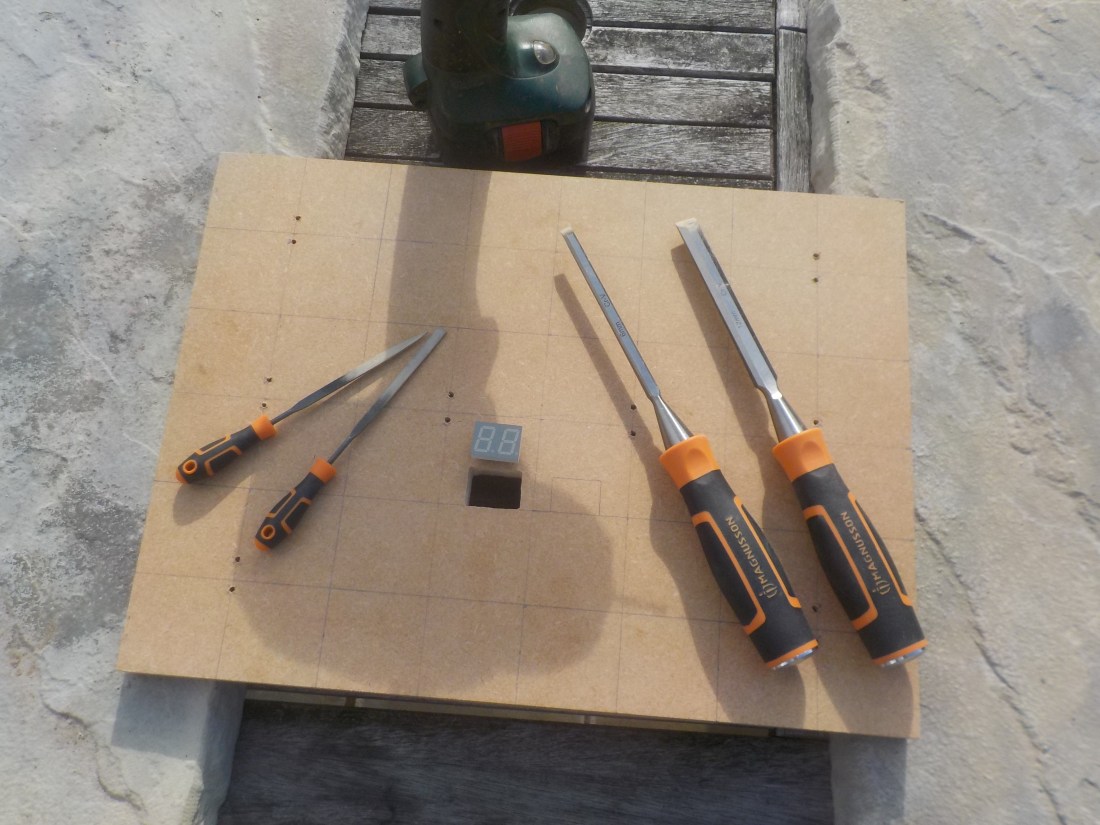
I also made two square holes for the score and countdown timer, by drilling lots of small holes and chiselling out the inside. Using a set of small files to smooth out the inside.

Chiselled.jpg

After all holes had been made and the support back bone of the board were complete I used several coats of spray paint to create a more interesting and finished look to the board. So that it ended up like this which you can see from a photo I took having added the 7 segment displays using super glue.

sprayed.jpg

The next step for development was to build a circuit which used a combination of things I had made along the way and to add the score board. I did this by combining work with 7 segment display and the photo sensor circuit I made earlier. The end result looked like this…

targets+Score

As you can see the score has reached 3 from shining the laser pointer at the correct target. The circuit looks like this…

Target&Score.png

This does not complete the circuit, I have left out all the connections that go from the chip to the 7 Segment display because it is too complicated to see in such a small space but the additional connections needed are these…

driver-7Seg

This structure will have to be repeated for each side of the 7 segment display. But I cannot create a diagram for something that complex and the tool that I used to draw it does not contain Dual Led Displays. You have to use the previous circuit and then use the corresponding pin on the Maxim 7219 from A-F to move around the the Display using A-F for one digit on the left and right side.

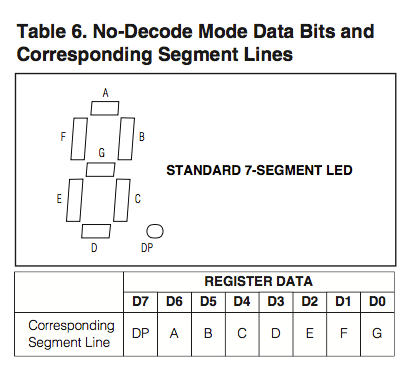
To best be able to wire the circuit with a driver chip correctly use these two diagrams (below) to know where the pins from A-F are and relate them to a visual confirmation that you have found the right pin on the Dual Display. Easiest done by setting up a code program that constantly draws and 8 on the displays or using individual Arduino pins to confirm you have the right display pin. If you use a common cathode display, like I have, you will need to ground the display, but with a chip it is grounded while connected to the chip as long as the chip is grounded correctly.

7segLayout

DriverLayout


With my circuit working including a score I’m happy to progress more with the prototyping and get closer to the final result of experimentation.

Final Experiment – Development 2

In this final experiment development process I will be trying to combine a lot of different skills and practiced circuits to make my Laser Tag DartBoard. In fact I use almost every available interface on the Arduino Leonardo. For example, I use both 3.3V, 5V and both ground pins. Every serial analogue entry pin A0 – A5 and all but one of the digital pins from 1-13. I actually made the mistake of making a dart board that had room for 8 targets and drilled the holes but cannot use them because I have used all of the available space on my Arduino.

Hopefully my work will be a success as I have no reason to believe that it won’t be.

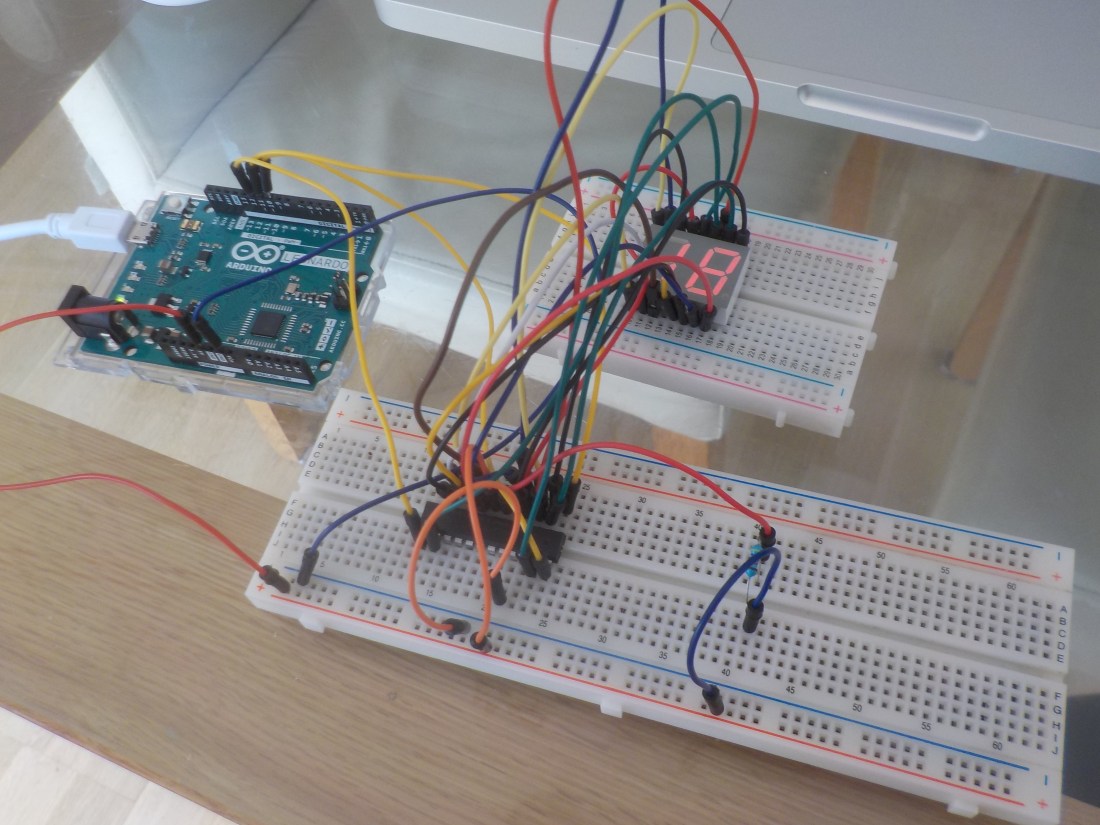
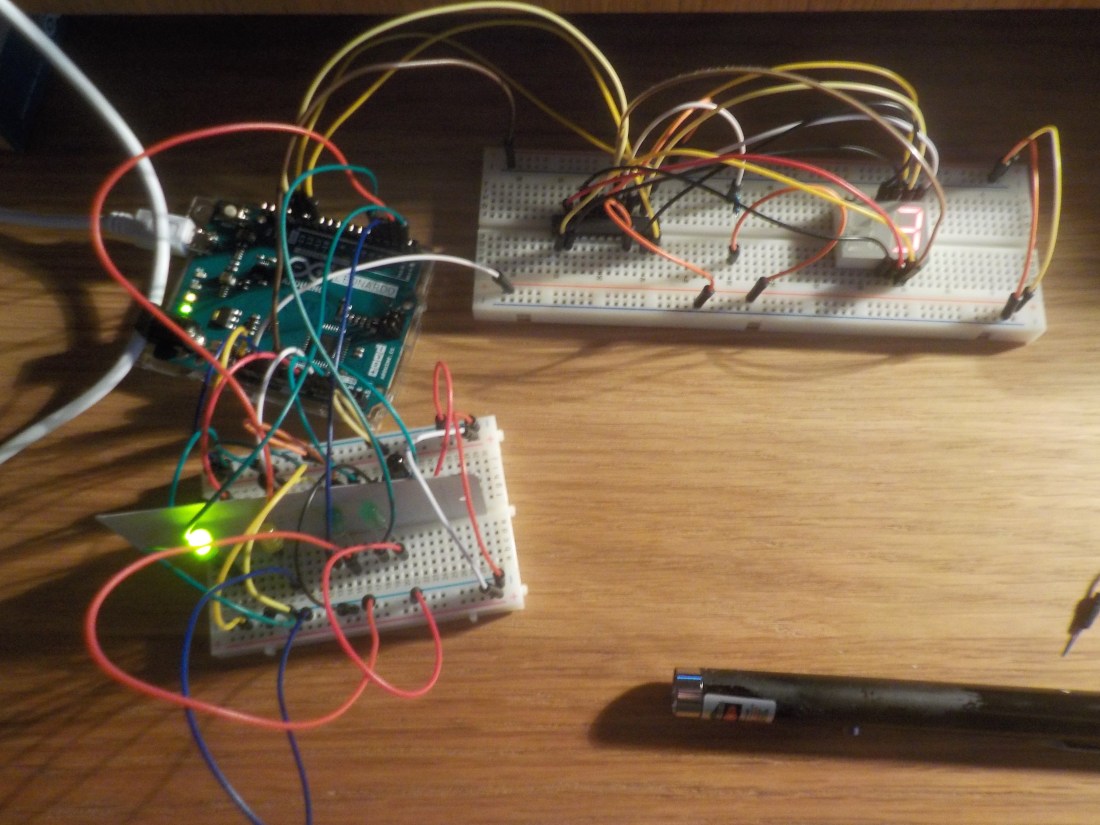
First of all I am going to attempt to make a practice circuit without attaching it to the wooden dart board I have made. I made a circuit that looks very complicated like this…final.jpg

It has been hard to make and I have had to buy many more jumper wires than I had to get enough to make it. I’m glad I bought two Maxim 7219’s because it would have been very difficult without them. This time I set up the full 6 targets to test and both the score and countdown timer.

It all seemed to be going well until as I tried to make it work I found it would not display the led to target for more than a split second. After fiddling with different things and checking all the wiring, connections and my code I realised that the countdown clock was still working. This seemed to be relevant.

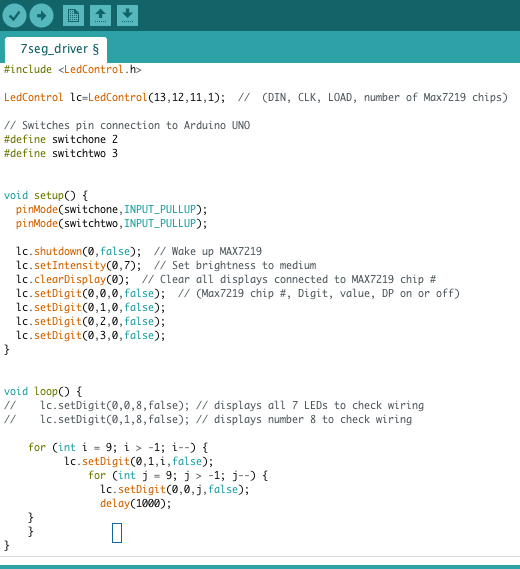
The problem was it seems that the code to run the countdown clock was interfering with the rest of the program. It looked like this…

for (int i = 9; i > -1; i–) {
lc.setDigit(0,1,i,false);
for (int j = 9; j > -1; j–) {
lc.setDigit(0,0,j,false);
delay(1000);                                     <=== THIS WAS THE PROBLEM
}
}

The problem was the delay function was halting the progress of the algorithm and using a for loop was resulting in the code only running the countdown and ignoring the rest. I looked around on the internet and found some information that could be a solution such as at https://www.norwegiancreations.com/2017/09/arduino-tutorial-using-millis-instead-of-delay/.

The solution was to use the function millis() which basically counts the time in millisecond since the start of the program. It has other benefits such as that it is never inaccurate the same way delay is because the timing is independent of the rest of the program, i.e you will not take longer because of different code execution. The other improvement is it does not halt the rest of the program to take place, it can run alongside the program without interrupting it. So while abandoning the for loop because it also may interfere with the program by being executed before the program continues I made another code solution using if statements. Like this…

if (tens > 0) {
if (millis() > time_now + period) {
if (single > 0) {
single–;
//tens–;
time_now = millis();
} else {
tens–;
single = 9;
time_now = millis();
}
}
} else if (tens == 0 && single > 0) {
if(millis() > time_now + period) {
tens = 0;
single–;
time_now = millis();
}
} else {
tens = 0;
single = 0;
stopFlag = true;
}

This code basically stores values and whenever the time in milliseconds is above 1000 it make an iteration to decrease a number by -1. The slightly more complicated part is catching when the clock for seconds has reached zero. Which could work but will actually try to count below zero.

having found I needed to fix a problem to make the last 9 seconds where the tens value is 0 but the seconds value is 9-0. I improve the whole program by adding a boolean for the whole game to end called stopFlag. Which will stop the game at 00 and leave the score visible while the player cannot continue to gain points. So problem solved.

The code of the whole final experiment looks like this…

#include <LedControl.h>
LedControl lc=LedControl(13,12,11,1);        // (DIN, CLK, LOAD, number of Max7219 chips)
LedControl ld=LedControl(10,9,8,1);           // (DIN, CLK, LOAD, number of Max7219 chips)

int target;           // a number that decides which target sensor in the witch is activated
int score;             // the number of points scored in 1-9
int Tscore;             // the number of points in tens scored
bool stopFlag;         // a boolean used to know when the game has ended
long time_now;       // a dynamic number that is updated to measure a second
int period;          // a number of a thousand to account for a second
int tens;        // the value used to display the tens of the timer
int single;     // the value used to display the seconds of the timer

int sensorPin1 = A0;          // select the input pin for phototransistor
int sensorPin2 = A1;          // select the input pin for phototransistor
int sensorPin3 = A2;          // select the input pin for phototransistor
int sensorPin4 = A3;          // select the input pin for phototransistor
int sensorPin5 = A4;          // select the input pin for phototransistor
int sensorPin6 = A5;          // select the input pin for phototransistor

int sensorValue1 = 0;         // variable to store the value coming from the sensor
int sensorValue2 = 0;         // variable to store the value coming from the sensor
int sensorValue3 = 0;         // variable to store the value coming from the sensor
int sensorValue4 = 0;         // variable to store the value coming from the sensor
int sensorValue5 = 0;         // variable to store the value coming from the sensor
int sensorValue6 = 0;         // variable to store the value coming from the sensor

void setup() {
lc.shutdown(0,false);             // Wake up MAX7219
lc.setIntensity(0,7);                // Set brightness to medium
lc.clearDisplay(0);                  // Clear all displays connected to MAX7219 chip #
lc.setDigit(0,0,0,false);           // (Max7219 chip #, Digit, value, DP on or off)
lc.setDigit(0,1,0,false);

ld.shutdown(0,false);           // Wake up MAX7219
ld.setIntensity(0,7);             // Set brightness to medium
ld.clearDisplay(0);              // Clear all displays connected to MAX7219 chip #
ld.setDigit(0,0,0,false);        // (Max7219 chip #, Digit, value, DP on or off)
ld.setDigit(0,1,0,false);

pinMode(1, OUTPUT); // sets up the pins at outputs
pinMode(2, OUTPUT);
pinMode(3, OUTPUT);
pinMode(4, OUTPUT);
pinMode(5, OUTPUT);
pinMode(6, OUTPUT);
digitalWrite(1, LOW); // start all pins as low output
digitalWrite(2, LOW);
digitalWrite(3, LOW);
digitalWrite(4, LOW);
digitalWrite(5, LOW);
digitalWrite(6, LOW);

target = 1;                // default start the game at target 1
score = 0;                // starts score at one
Tscore = 0;             // start 10 score at 0
period = 1000;      // assigns a vlaue of thousand millis for a second
time_now = 0;      // sets time now at zero
tens = 9;                // start timer with a nine
single = 9;             // start timer with a nine
stopFlag = false;      // stops the game from ending too soon
}

void loop() {
//Serial.println(“In the Loop!!”);
//Serial.println(target);
while (stopFlag == false) {
switch (target) {
case 1:
Serial.println(“Sensor1 Active”);            // a comment that helps test the code
digitalWrite(1, HIGH);            // sets the LED at high / turns it on
sensorValue1 = analogRead(sensorPin1);          // read the value from the sensor
Serial.println(sensorValue1);                     // prints out the value so I can check it is working
if (sensorValue1 > 4) {                // if the sensor picks up a value higher than 4
Serial.println(“Sensor1 Hit!!”);         // comment that tells me the sensor was hit
digitalWrite(1, LOW);            // after being hit the LED is turned of
score++;             // increments score to update the game
delay(300);                 // gives a small delay before the game continues
target = getTarget();            // call function to get random target
}
break;
case 2:
Serial.println(“Sensor2 Active”);
digitalWrite(2, HIGH);
sensorValue2 = analogRead(sensorPin2); // read the value from the sensor
Serial.println(sensorValue2);
if (sensorValue2 > 4) {
Serial.println(“Sensor2 Hit!!”);
digitalWrite(2, LOW);
score++;
delay(300);
target = getTarget();
}
break;
case 3:
Serial.println(“Sensor3 Active”);
digitalWrite(3, HIGH);
sensorValue3 = analogRead(sensorPin3); // read the value from the sensor
Serial.println(sensorValue3);
if (sensorValue3 > 4) {
Serial.println(“Sensor3 Hit!!”);
digitalWrite(3, LOW);
score++;
delay(300);
target = getTarget();
}
break;
case 4:
Serial.println(“Sensor4 Active”);
digitalWrite(4, HIGH);
sensorValue4 = analogRead(sensorPin4); // read the value from the sensor
Serial.println(sensorValue4);
if (sensorValue4 > 4) {
Serial.println(“Sensor4 Hit!!”);
digitalWrite(4, LOW);
score++;
delay(300);
target = getTarget();
}
break;
case 5:
Serial.println(“Sensor5 Active”);
digitalWrite(5, HIGH);
sensorValue5 = analogRead(sensorPin5); // read the value from the sensor
Serial.println(sensorValue5);
if (sensorValue5 > 4) {
Serial.println(“Sensor5 Hit!!”);
digitalWrite(5, LOW);
score++;
delay(300);
target = getTarget();
}
break;
case 6:
Serial.println(“Sensor6 Active”);
digitalWrite(6, HIGH);
sensorValue6 = analogRead(sensorPin6); // read the value from the sensor
Serial.println(sensorValue6);
if (sensorValue6 > 4) {
Serial.println(“Sensor6 Hit!!”);
digitalWrite(6, LOW);
score++;
delay(300);
target = getTarget();
}
break;
}
lc.setDigit(0,0,score,false); // calls one side of Led display to display score in single digits
lc.setDigit(0,1,Tscore,false); // calls one side of Led display to display score in double digits
if (score > 9) { // if score is above nine +1 to the tens
Tscore++; // increments the tens score
score = 0; // resets score single digits to 0
}

ld.setDigit(0,1,tens,false); // prints the count in tens
ld.setDigit(0,0,single,false); // prints the count of single digits

if (tens > 0) { // if number of ten digits is still above zero
if (millis() > time_now + period) { // if time plus 10 seconds has been exceeded
if (single > 0) { // if score not zero
single–; // decrease time by one second
//tens–;
time_now = millis(); // the time_now variabe is reset to count another second
} else {
tens–; // decrease number of tens digit by one
single = 9; // reset the single digit to 9
time_now = millis(); // the time_now variabe is reset to count another second
}
}
} else if (tens == 0 && single > 0) { // an else if for the last 9 seconds below ten
if(millis() > time_now + period) { // if a second has passed do this
tens = 0; // tens stays at 0
single–; // single digits continues to decrease
time_now = millis(); // the time_now variabe is reset to count another second
}
} else {
tens = 0; // if time runs out
single = 0;
stopFlag = true; // a bool that causes the end of the game
}

delay(100); // a little delay for stability
}
}
int getTarget() { // function used to choose next target
int counter = random(1,7); // a int counter and a random number from 1-6
return counter; // returns the number
}

The next objective is to recreate all of this on the actual dartboard I have made. Some of the tools I used for this are sticky back velcro and insulated tape. After securing the Arduino and a bread board I started to make my circuit. Like this…

circuitBack1.jpg

Which is one chip and one 7 segment display working. Then I progressed to making a circuit where both 7 segment were working, like this…

circuitBack2.jpg

The problem I found when testing this is that I succeeded in every way finding the correct pins and printing the timer/score. But that I was left with the numbers backwards having secured the connections with the board face down. So painstakingly I reconnected the pins moving counterclockwise and the result looked like this…
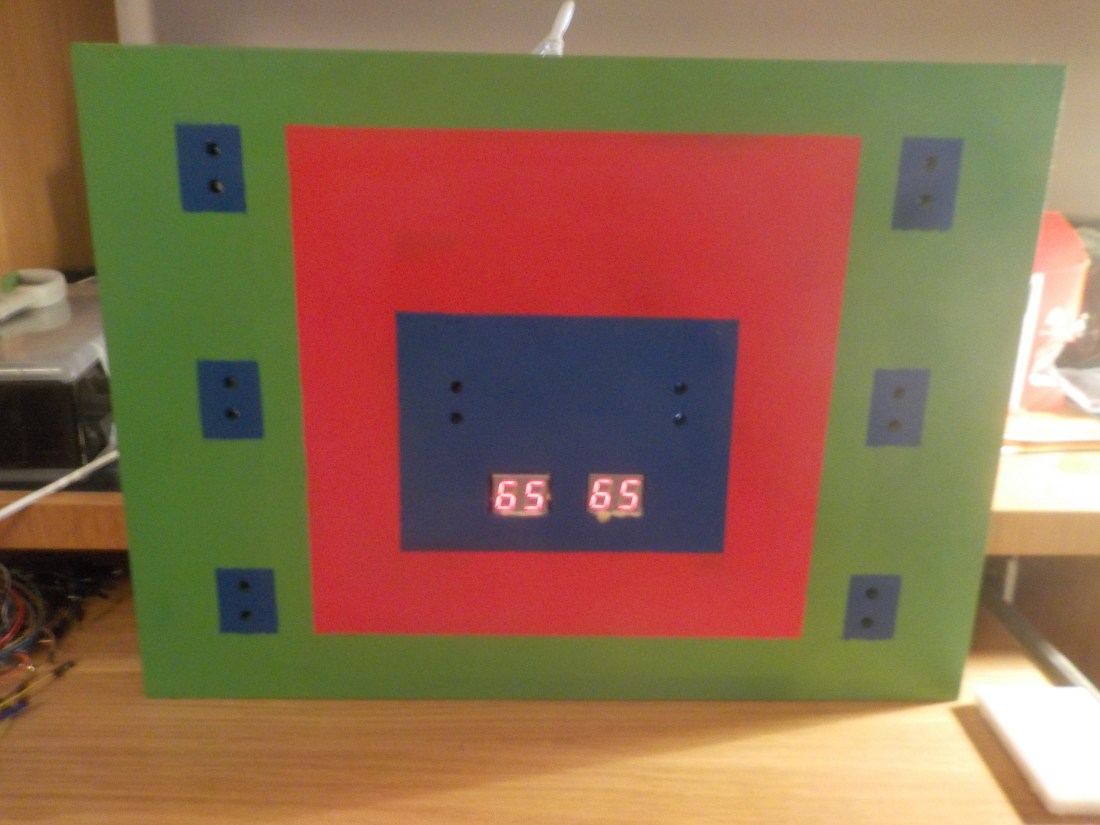
sprayed

From here I used BlueTac to fill all the holes I would be using to push anode and cathode wires through and to make the LEDs and sensors keep their position. I added to the circuit with all the connections between sensors and LEDs fastened securely with blue insulated tape.

It was important when making these connection to have lots of male-male, male-female and female-female jumper wires. These enable you to use female ends to connect firmly to the wires of LEDs etc. Sometimes a female to female can be used with male-male wires added either side. But this can be worked out as you put the circuit together. It is very handy to have an excess of these wires or your progress might be stunted like mine was at times. So the final circuit looked like this…

final circuit.jpg

I was so pleased to have everything together, all that is left is the moment of truth.